

Microsoft MAI Image 2.7 · No. 2 in image editing on Artificial Analysis

MAI Image 2.7Relight, restyle and restore images with Microsoft's MAI models

MAI Image 2.7 is Microsoft's new editing-first image model. Here you can work with the MAI family today: describe a picture, or upload a photo and say what to change. Runs on MAI-Image-2.6 in your browser.

0 / 2000
Try:
Living room relit for a warm evening
Street photo restyled as a watercolor painting
Old family photo restored and colorized
Travel poster with new text and a night sky
Film photo of latte art at golden hour
74 free credits on sign-upRuns in your browserFailed runs refunded

What is MAI Image 2.7?

MAI Image 2.7 is the latest image model from Microsoft AI, released in preview on October 27, 2026. It is built for the edits that are hardest to get right: restyling or relighting a whole scene, changing text and symbols so they still sit naturally in the picture, and restoring or enhancing existing images.

  • It debuted at No. 2 on Artificial Analysis's image editing leaderboard, above GPT Image 2.5 Flare, and at No. 3 on Arena Edit.
  • Microsoft says it beats MAI Image 2.6 in all 10 use cases and all 7 editing actions Artificial Analysis measures, with its biggest lead in scene and style edits, 24 Elo ahead of the next model.
  • It launched editing-first, with text-to-image to follow. By mid-November 2026 it was listed on Microsoft Foundry and on API gateways such as OpenRouter, next to a lower-cost MAI Image 2.7 Flash.
  • The editor on this site runs MAI-Image-2.6 and MAI-Image-2.6 Flash, so you can work with MAI models now without an Azure account or an API key.

Sources: Microsoft AI announcement · Artificial Analysis leaderboard

MAI Image 2.7 edit ideas: relight, restyle, restore, retype

These are the four kinds of edits MAI Image 2.7 is known for. Each pair shows a starting picture and an edited result made for this page, with the instruction behind it. Copy the instruction, upload your own photo in the editor and adjust it.

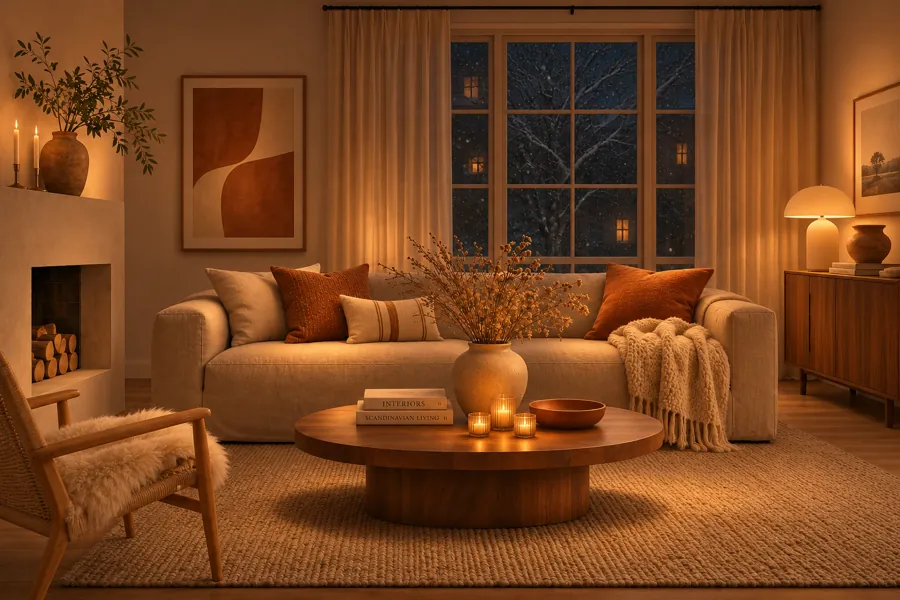
Living room in daylight before the relight edit
Before
The same living room relit for a warm evening with lamps and candles
After

Relight a scene

Change the time of day, the light sources or the mood while the room, the objects and the camera angle stay where they are.

Edit instruction Relight this living room for a warm winter evening: dark outside the window, the floor lamp and table lamp on, soft amber light on the sofa, a few candles on the table. Keep the furniture, layout and camera angle exactly the same.
Try this edit
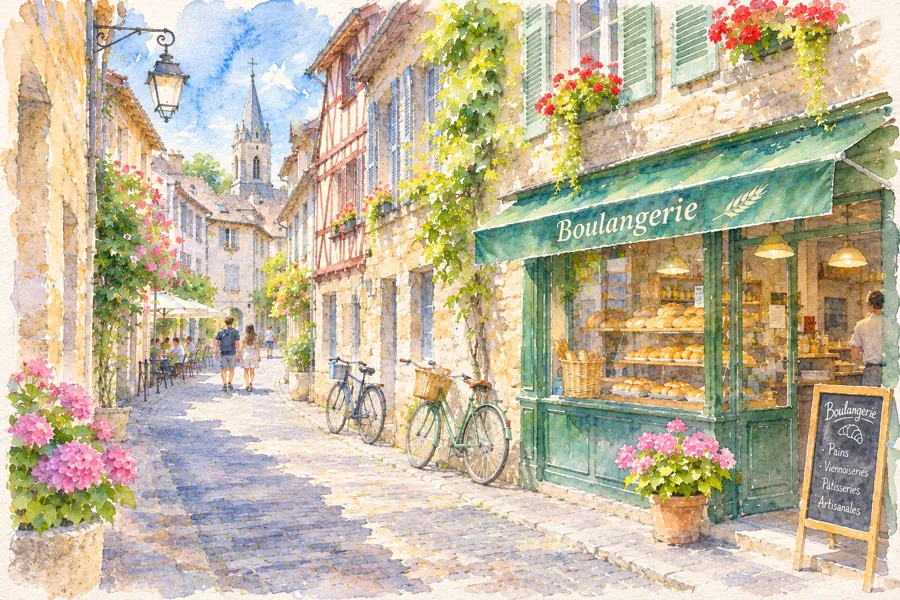
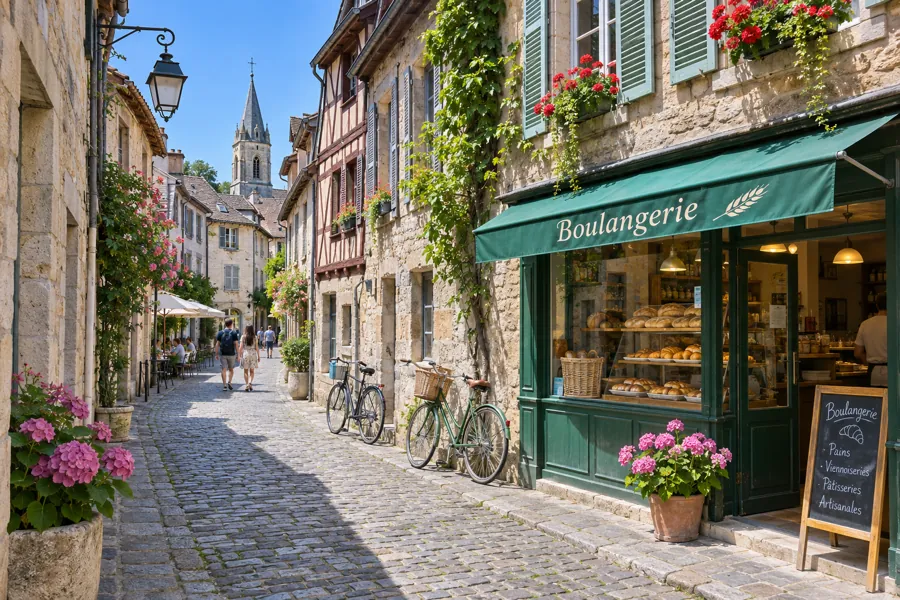
Street photo of a bakery lane before restyling
Before
The same bakery lane restyled as a watercolor painting
After

Restyle a photo

Turn a photo into watercolor, film, illustration or a brand look without losing the layout. Scene and style edits are where MAI Image 2.7 leads the leaderboard.

Edit instruction Restyle this street photo as a loose watercolor painting on textured paper: soft washes, pigment blooms, light pencil underdrawing, white paper in the highlights. Keep the lane, bakery, awning and bicycles where they are.

Try this edit
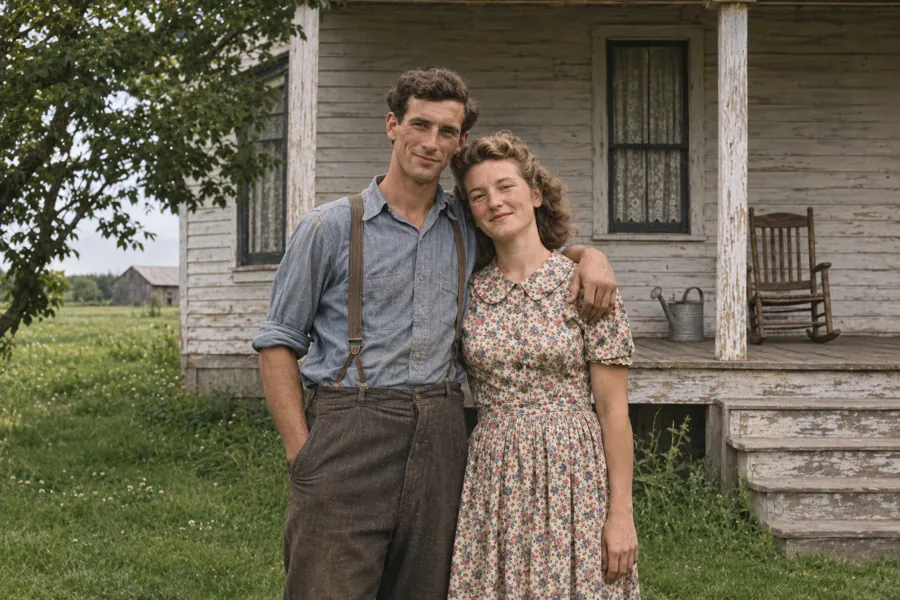
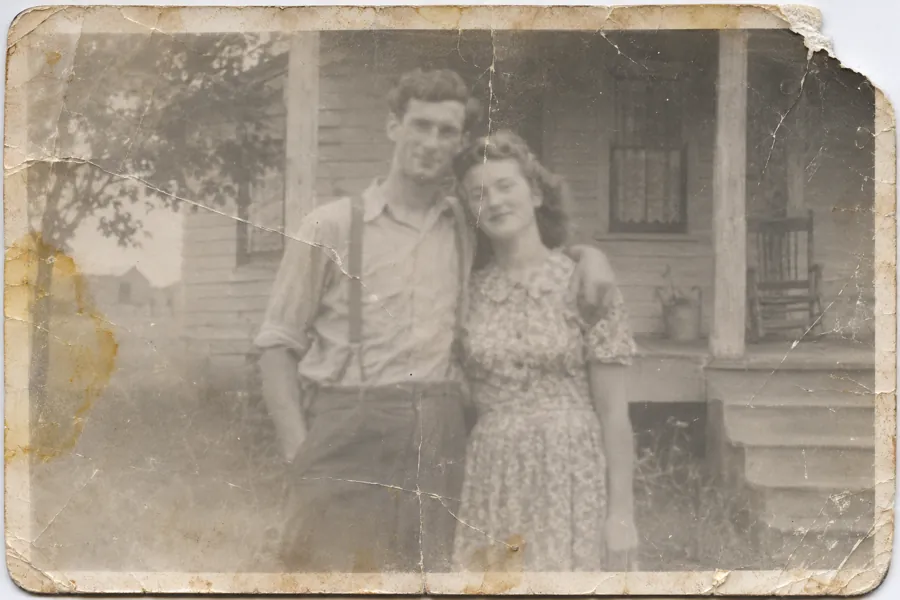
Damaged black-and-white photo of a couple from the 1940s
Before
Restored and colorized version of the same 1940s photo
After

Restore old photos

Remove cracks, stains and fading, sharpen faces and add natural colour to a scanned print.

Edit instruction Restore this old photograph: remove the cracks, creases, stains and the torn corner, sharpen the faces naturally and colorize it with realistic 1940s colours. Keep both people, their poses and expressions exactly the same.

Try this edit
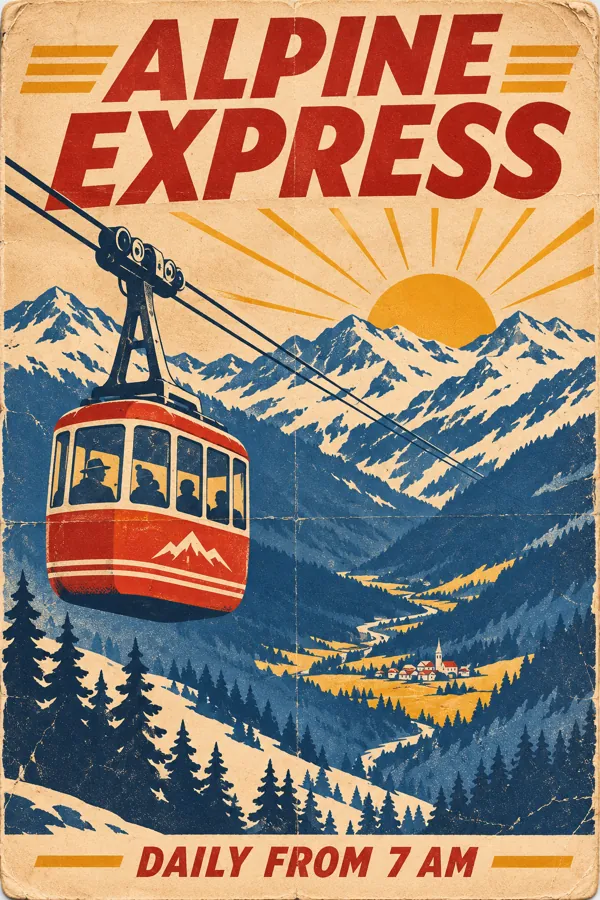
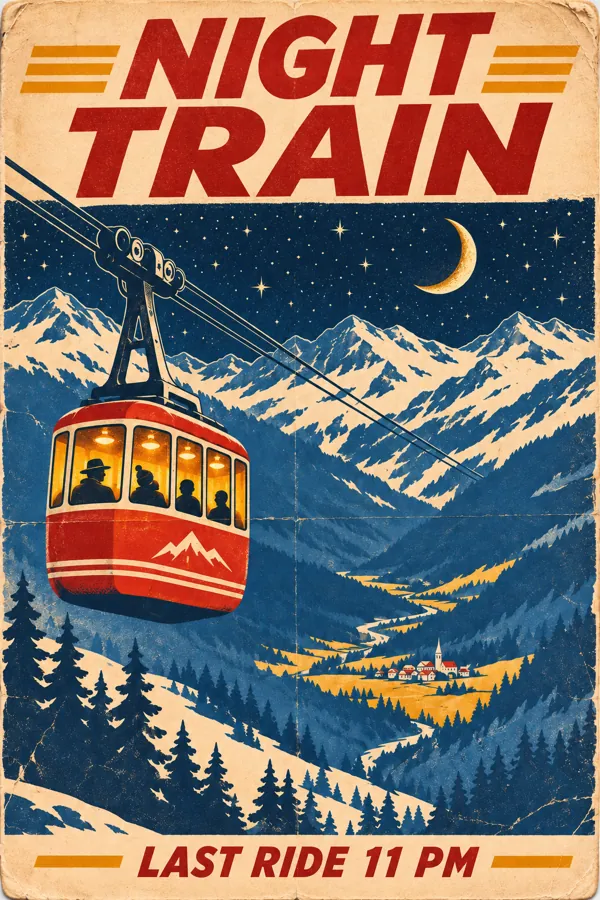
Alpine travel poster with the headline ALPINE EXPRESS
Before
The same poster changed to NIGHT TRAIN with a starry night sky
After

Change text and signs

Swap a headline, a label or a sign and keep the lettering style, so the new words look printed rather than pasted on.

Edit instruction Change the headline to "NIGHT TRAIN" and the bottom line to "LAST RIDE 11 PM" in the same lettering and colours. Turn the sunrise into a starry night with a crescent moon and light the cable car windows. Keep the rest of the poster the same.

Try this edit

Prompt ideas for the MAI image generator

Starting prompts for photos, products, posters and illustrations. Hover a picture to copy its prompt, or open it in the editor and make it your own.

Why edit with MAI models on TryMaiImage

Microsoft offers MAI Image 2.7 through a playground and developer APIs. TryMaiImage is the simple route: one box, pay as you go, nothing to configure.

Create or edit from the same box

Type a prompt to generate a new picture. Attach a photo and the same box takes an edit instruction instead. There are no separate tools or modes to learn.

2.6 for finals, Flash for drafts

Try ideas quickly on MAI-Image-2.6 Flash, then run the same prompt on MAI-Image-2.6 for the version you keep. The cost of each run is shown before you start.

No Azure account or API key

Reaching MAI models through Foundry or an API gateway means a cloud account, keys and code. Here you sign in with Google or email and start in a browser tab, on a laptop or a phone.

Failed runs give credits back

If a generation fails, its credits go back to your balance automatically, so trying a hard edit costs nothing when it does not finish.

How to edit an image with MAI

Three steps from a photo or an idea to a downloaded image.

  1. 1

    Upload a photo or write a prompt

    Add one photo to edit it, or start from text alone. Describe the result you want in plain sentences.

  2. 2

    Choose 2.6 or Flash

    Use MAI-Image-2.6 for the image you keep and MAI-Image-2.6 Flash for quick drafts, then pick the shape you need.

  3. 3

    Generate, compare, download

    Run it, compare versions in your history and download the one you like.

Editing tips for MAI image models

Edit instructions work best when they read like a brief to a retoucher. These habits help with MAI Image 2.7 and with the MAI models on this site.

1

Describe the finished picture

Write what the result should show, such as "a warm evening with the lamps on", rather than a list of steps.

2

Say what must not change

End the instruction with what to keep: the people, the layout, the camera angle, the product label.

3

Quote new text exactly

Put replacement words in quotes and keep them short. Say where they go and that the lettering style stays the same.

4

Change one thing at a time

Relight first, then restyle. Small, separate edits are easier to control than one long instruction.

5

Start from a clean photo

A sharp, well-exposed photo gives the model more to work with. For old prints, scan at a high resolution before you restore them.

MAI Image 2.7 FAQ

Quick answers about Microsoft's MAI Image 2.7 and how to use MAI models here.

MAI Image 2.7 is Microsoft AI's image model released in preview on October 27, 2026. It focuses on precise edits, such as relighting and restyling scenes, changing text and symbols, and restoring images, and it ranked No. 2 on Artificial Analysis's image editing leaderboard at launch.

Start editing with MAI

Sign up and get 74 free credits, enough for your first two MAI-Image-2.6 images.

See pricing